
Thursday morning started with a hiccup: one of my lab/family domain sub-CA servers was down. My RMM toolset flagged a service outage, so I remotely connected to investigate. Attempts to start the ADCS service returned a strange popup window error code—not the usual format (e.g., 0xnnnnnn)—but something like -eiojwojh8ew390nnnnnnn. Every time I tried to start the service, the popup window error code changed.
This server, a Sub-CA upgraded to Server 2025 from Server 2022 (and before that 2019 and 2016), had been running fine for over a month. However, it’s worth noting that this wasn’t my first issue with this Server 2025 upgrade (e.g., private network problems and Windows LAPS complications—but that’s a story for another day).
Diagnosing the Issue
Opening the ADCS console revealed the service was in a stopped state. Attempts to restart it failed, and the Windows Application error log showed this message:
“Keyset does not exist 0x80090016 (-2146893802 NTE_BAD_KEYSET)”
 A quick search led me to an old ServerFault.com article from 2012. The solution there advised checking the
 HKLMSystemCurrentControlSetServicesCertsvcConfiguration registry key for the CertHash value. The idea was to match this with certificates in the Local Computer Certificate Store to see if any had expired.
Sure enough, expired Sub-CA certificates from 2016, 2018, and 2020 were present in the Certificate Store. Comparing their thumbprints with the CACertHash value in the registry revealed that while the registry included certs up to 2020, it lacked those issued in 2022, 2024, and the current cert expiring in 2026.
Troubleshooting
- Manually Adding New Hashes
I manually added the missing certificate hashes to the registry, but restarting the ADCS service still failed.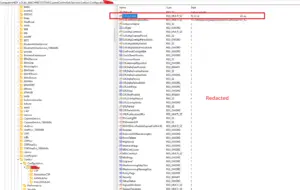
- Removing Old Values
I replaced the old registry values with placeholders (dashes) and left only the newest hash. Still no success. - Testing with an OCSP Certificate
I noticed a valid OCSP certificate in the local Computer Certificate Store. Replacing the registry hash with the OCSP hash allowed the Certificate Authority to start—although it showed the OCSP cert as the root.

At this point, I backed up the Certificate Authority (CA) database to safeguard progress.
Reinstalling the Certificate Authority Role
To fully resolve the issue, I took the following steps:
- Removed the CA Role
Using Server Manager, I uninstalled the Certificate Authority role and rebooted the server. - Reinstalled the Role with a New Key
After the reboot, I re-added the CA role, configuring it as a new Sub-CA with a new private key. - Repaired the Sub-CA
I then submitted the CSR to my offline root CA and retrieved the new certificate and installed the certificate on the Sub-CA. Once this was completed, I was able to start the CA service. I restored the database from the backup made earlier using the OCSP cert.
- Validated the Setup
I verified the new Sub-CA certificate was valid from the root. I then checked issued certificates to ensure they were restored correctly. I could see all of my previous 1,700 certificates in the pane.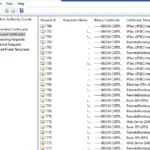
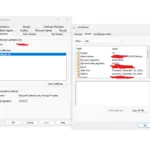


I also updated Certificate Templates to match other Sub-CAs and tested a certificate request from a domain-joined workstation—success!
Root Cause?
The exact reason for the failure remains unclear. However, using an alternate certificate hash temporarily brought ADCS back online, enabling me to back up the database. Reinstalling ADCS, generating a new private key, and restoring the database ultimately resolved the issue.
Takeaway
This experience underscores the importance of regularly backing up your CA/Sub-CA. Store those backups in a safe, offline location—you never know when you’ll need them.
Back in business! 🚀