
Automatically Rebooting a MeshCore Room Server Connected to Ubuntu 26.04
I recently ran into an issue where my MeshCore observer node was showing as offline or potentially offline in MeshCore Analyzer, even though the Room Server hardware appeared to be running normally.
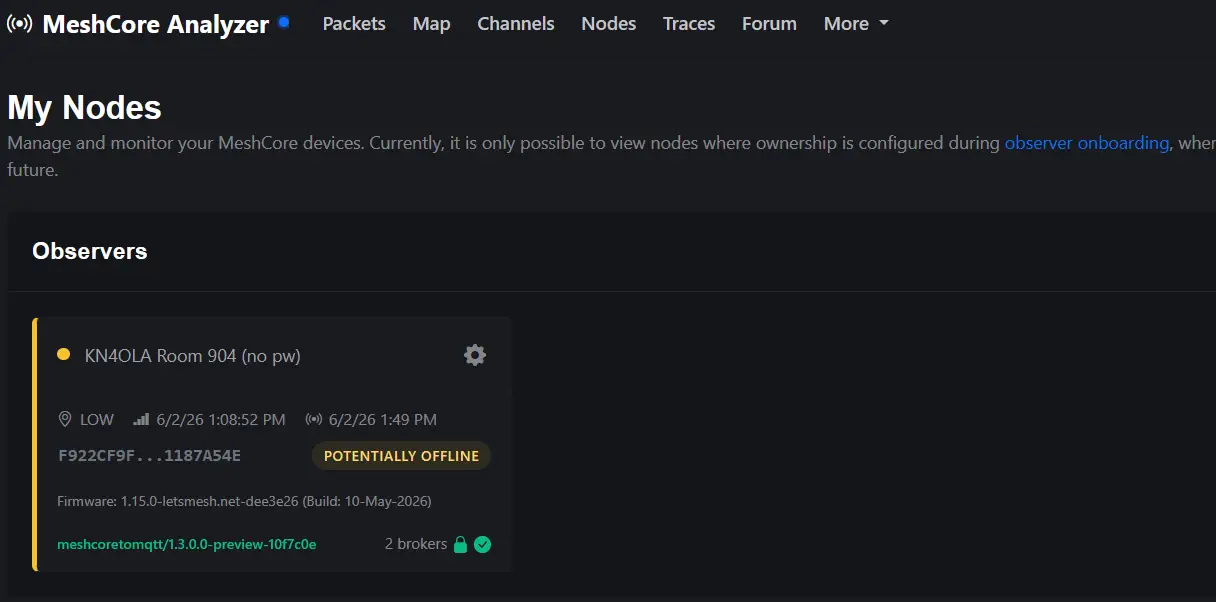
In my case, the setup was a Heltec WiFi LoRa 32 V4 running as a
MeshCore Room Server, connected over USB to an Ubuntu 26.04 Server Minimal system. The serial device appeared as:
/dev/ttyACM0After manually rebooting the Heltec Room Server, the observer came back online. That made the fix pretty simple: schedule Ubuntu to reboot the Room Server automatically once per day.
The Important Discovery
The MeshCore Room Server does not behave like a normal serial companion node. It needs to be accessed in repeater mode using the -r option.
This command did not work:
meshcore-cli -s /dev/ttyACM0 rebootIt returned an error similar to:
No response from meshcore node, disconnecting
Are you sure your node is a serial companion?
To connect to a repeater, use -r option.
The working command was:
meshcore-cli -r -s /dev/ttyACM0 rebootStep 1: Confirm Ubuntu Sees the Device
ls -l /dev/ttyACM0You can also use MeshCore CLI’s device selector:
meshcore-cli -SMy device showed up as:
/dev/ttyACM0
heltec_wifi_lora_32 v4 - TinyUSB CDC
Step 2: Test the Reboot Command Manually
Before automating anything, test the command manually:
meshcore-cli -r -s /dev/ttyACM0 rebootIf successful, MeshCore CLI will connect to the Room Server, issue the reboot
command, and then disconnect as the device restarts.
Step 3: Find the Full Path to meshcore-cli
Cron uses a limited environment, so use the full path to the command.
which meshcore-cliOn my system, it returned:
/root/.local/bin/meshcore-cliStep 4: Install Cron if Needed
Because this was an Ubuntu 26.04 Server Minimal install, cron was not installed by default.
sudo apt update
sudo apt install cron
Enable and start cron:
sudo systemctl enable --now cronVerify it is running:
systemctl status cronStep 5: Check the Server Time Zone
My Ubuntu server was running in UTC. Since cron follows the system time zone, I changed the server to Eastern Time.
timedatectlsudo timedatectl set-timezone America/New_YorkVerify the change:
timedatectlStep 6: Create the Daily Reboot Cron Job
Edit root’s crontab:
sudo crontab -eAdd the following line:
0 2 * * * /root/.local/bin/meshcore-cli -r -s /dev/ttyACM0 reboot >> /var/log/meshcore-reboot.log 2>&1This runs the reboot command every day at 2:00 AM and writes
output to:
/var/log/meshcore-reboot.logStep 7: Verify the Cron Job
sudo crontab -lTo monitor the reboot log:
tail -f /var/log/meshcore-reboot.logTo monitor cron activity:
sudo journalctl -u cron -fOptional: Test the Cron Job
To avoid waiting until 2:00 AM, temporarily schedule the job a few minutes in
the future. For example, if the current time is 13:46, set it for 13:48:
48 13 * * * /root/.local/bin/meshcore-cli -r -s /dev/ttyACM0 reboot >> /var/log/meshcore-reboot.log 2>&1Once confirmed, change the cron job back to the daily 2:00 AM schedule:
0 2 * * * /root/.local/bin/meshcore-cli -r -s /dev/ttyACM0 reboot >> /var/log/meshcore-reboot.log 2>&1Final Working Command
/root/.local/bin/meshcore-cli -r -s /dev/ttyACM0 rebootFinal Cron Entry
0 2 * * * /root/.local/bin/meshcore-cli -r -s /dev/ttyACM0 reboot >> /var/log/meshcore-reboot.log 2>&1Conclusion
If your MeshCore Room Server is connected to Ubuntu over USB and your observer node is showing as offline or potentially offline in MeshCore Analyzer, rebooting the Room Server may bring it back online.
The key is remembering that the Room Server must be accessed as a repeater:
meshcore-cli -r -s /dev/ttyACM0This is not a replacement for troubleshooting firmware, MQTT, broker, network, or observer issues, but for a small unattended deployment, a scheduled early-morning reboot is a practical reliability improvement.